This article will guide you through the step-by-step process of changing and verifying your email address within the app. Whether you are updating your contact information, correcting an incorrect email, or troubleshooting verification issues, the instructions below will help walk you through the process clearly and successfully.
Step 1:
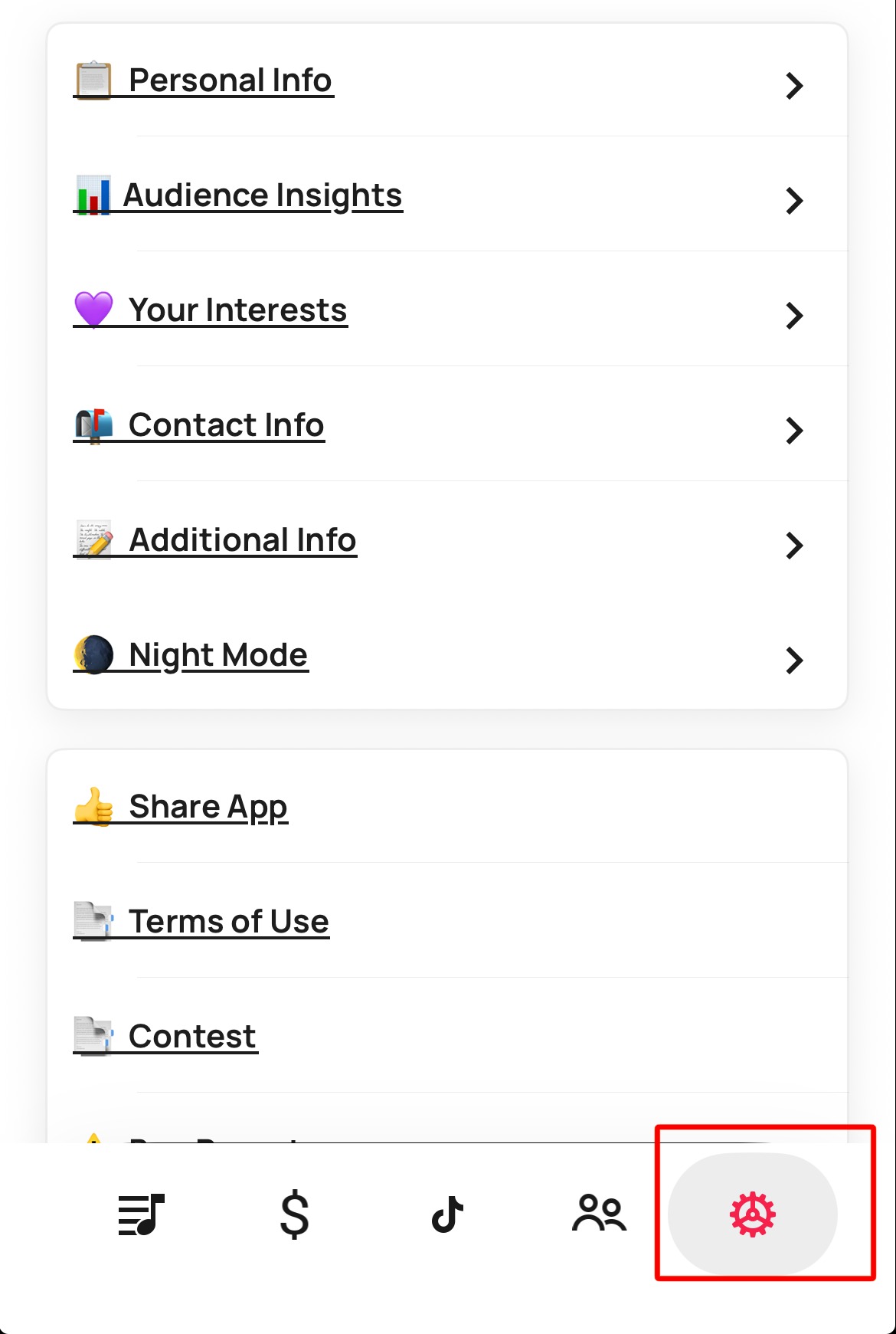
Go to your Settings page within the app.
Go to your Settings page within the app.
Step 2:
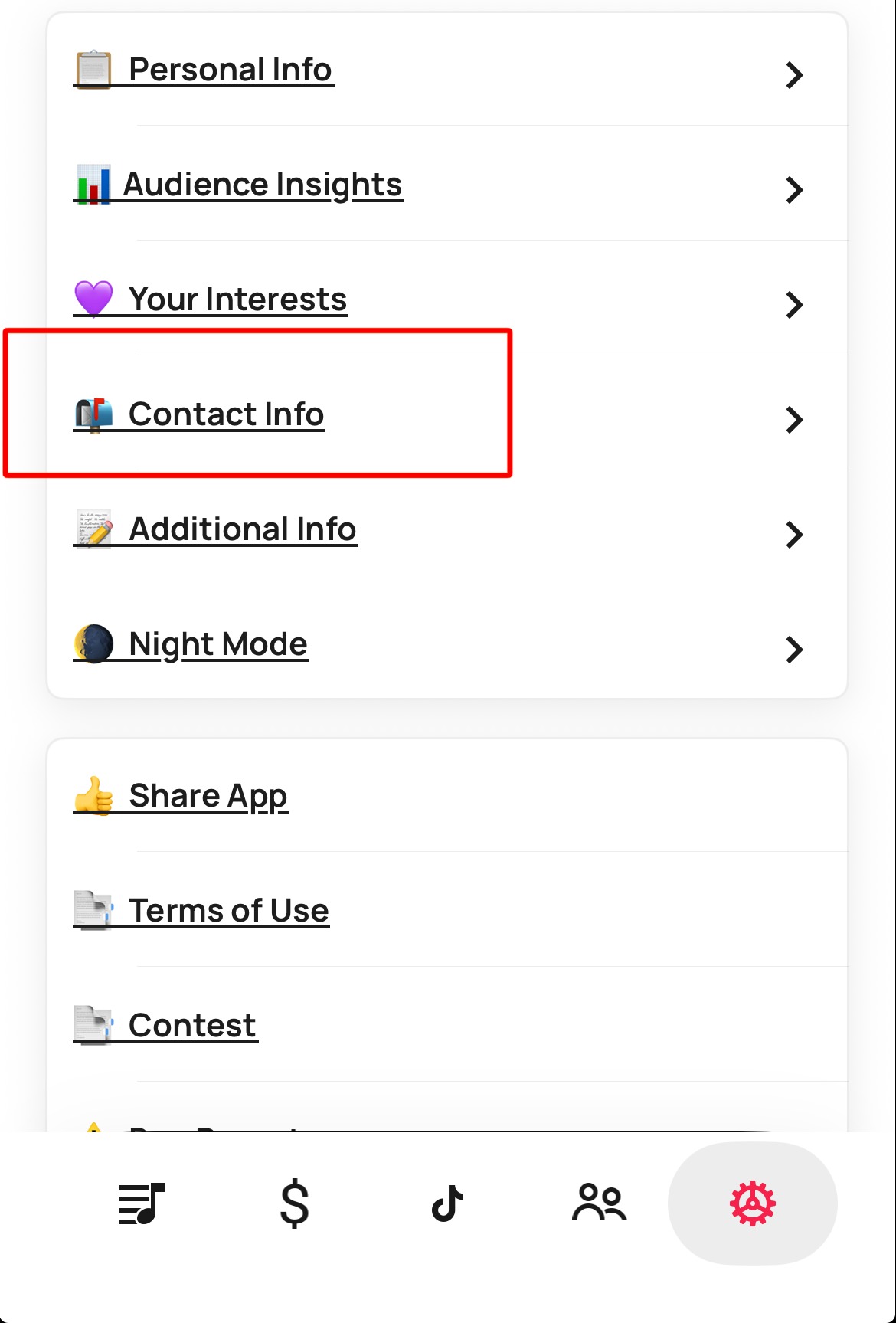
Inside your Settings, locate and select Contact Info as shown in the screenshot below.
Inside your Settings, locate and select Contact Info as shown in the screenshot below.
Step 3:
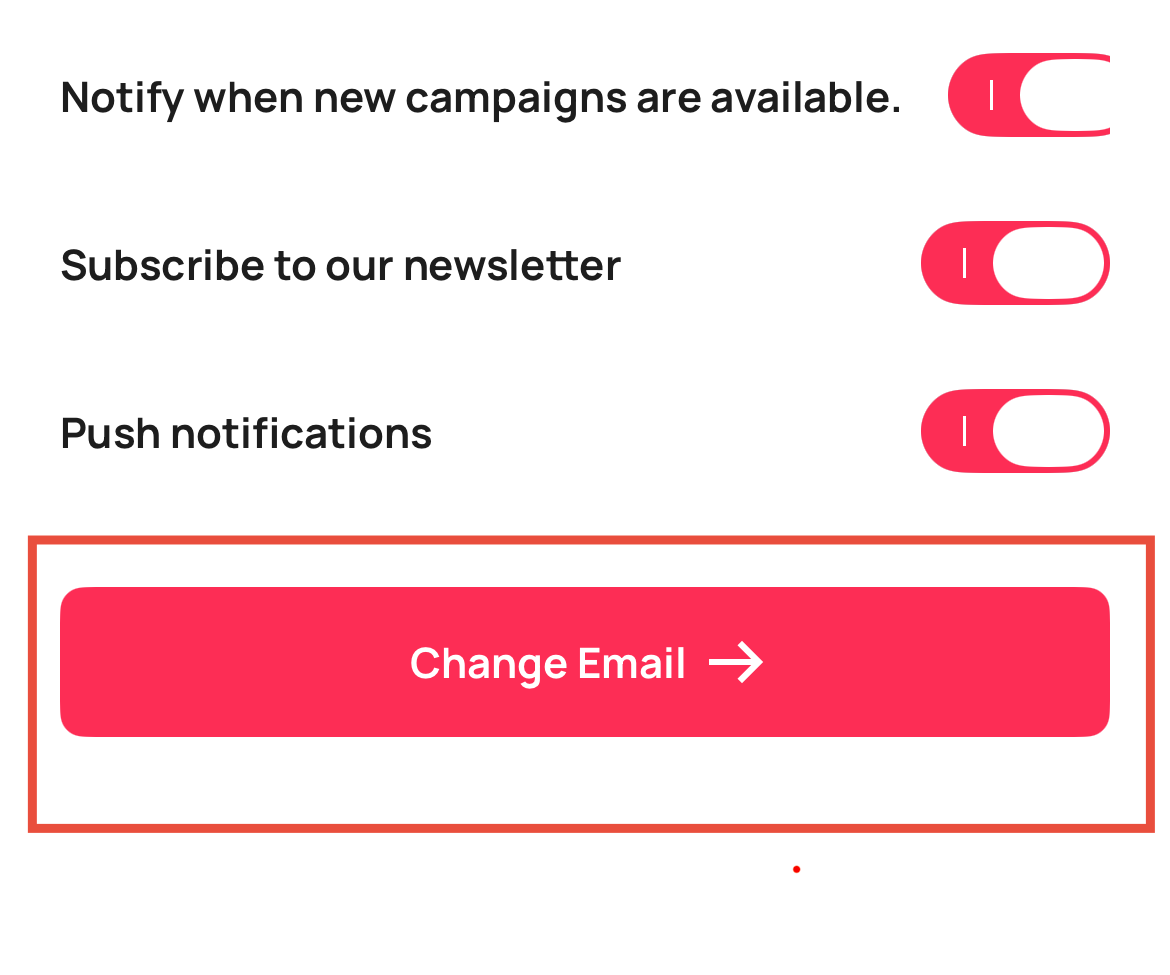
Within the Contact Info section, you should see a red button labeled “Change Email.” Please click on that button.
Within the Contact Info section, you should see a red button labeled “Change Email.” Please click on that button.
Step 4:
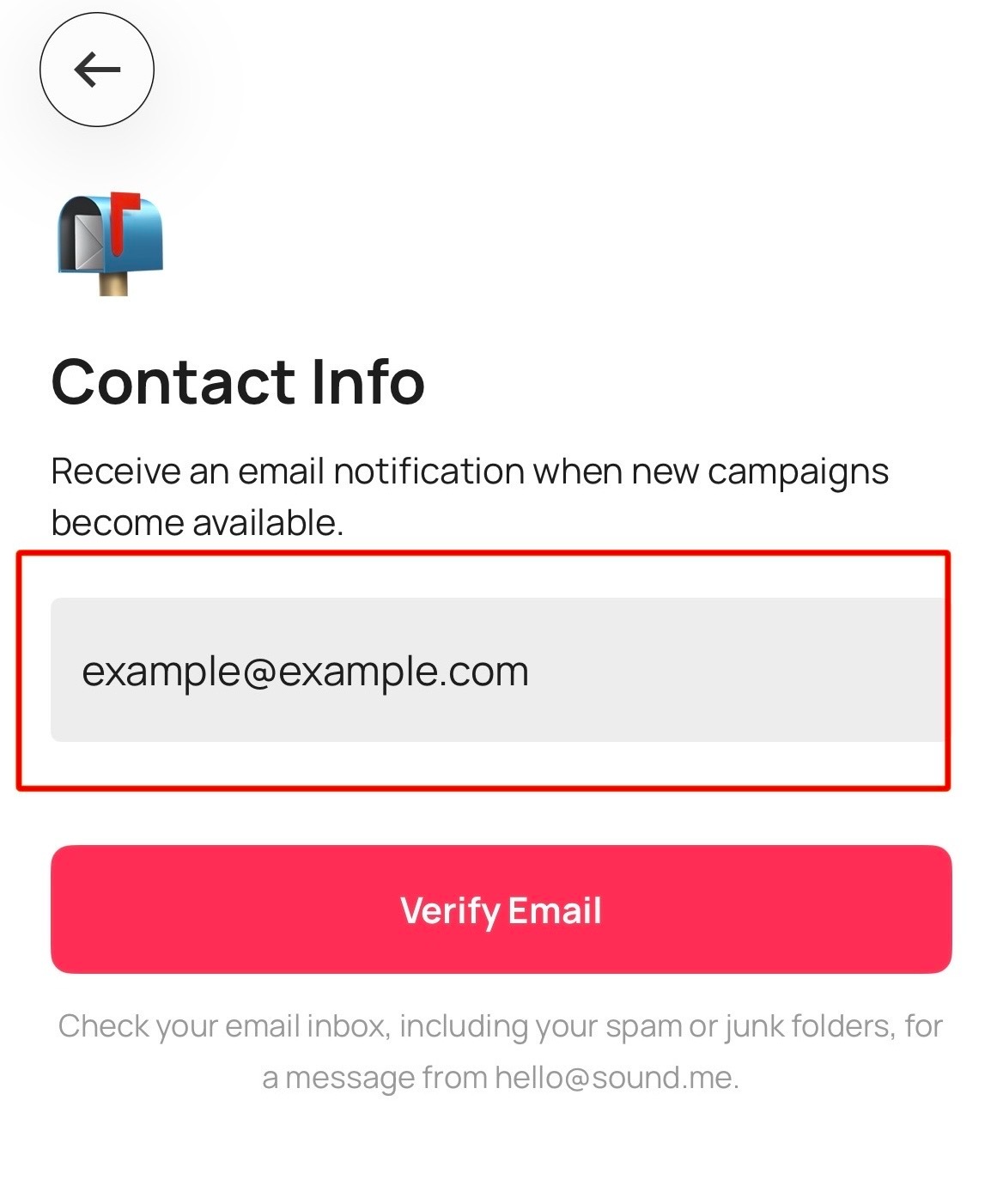
After clicking “Change Email,” you will be taken to a page where you can enter the new email address you would like to use.
Step 5:
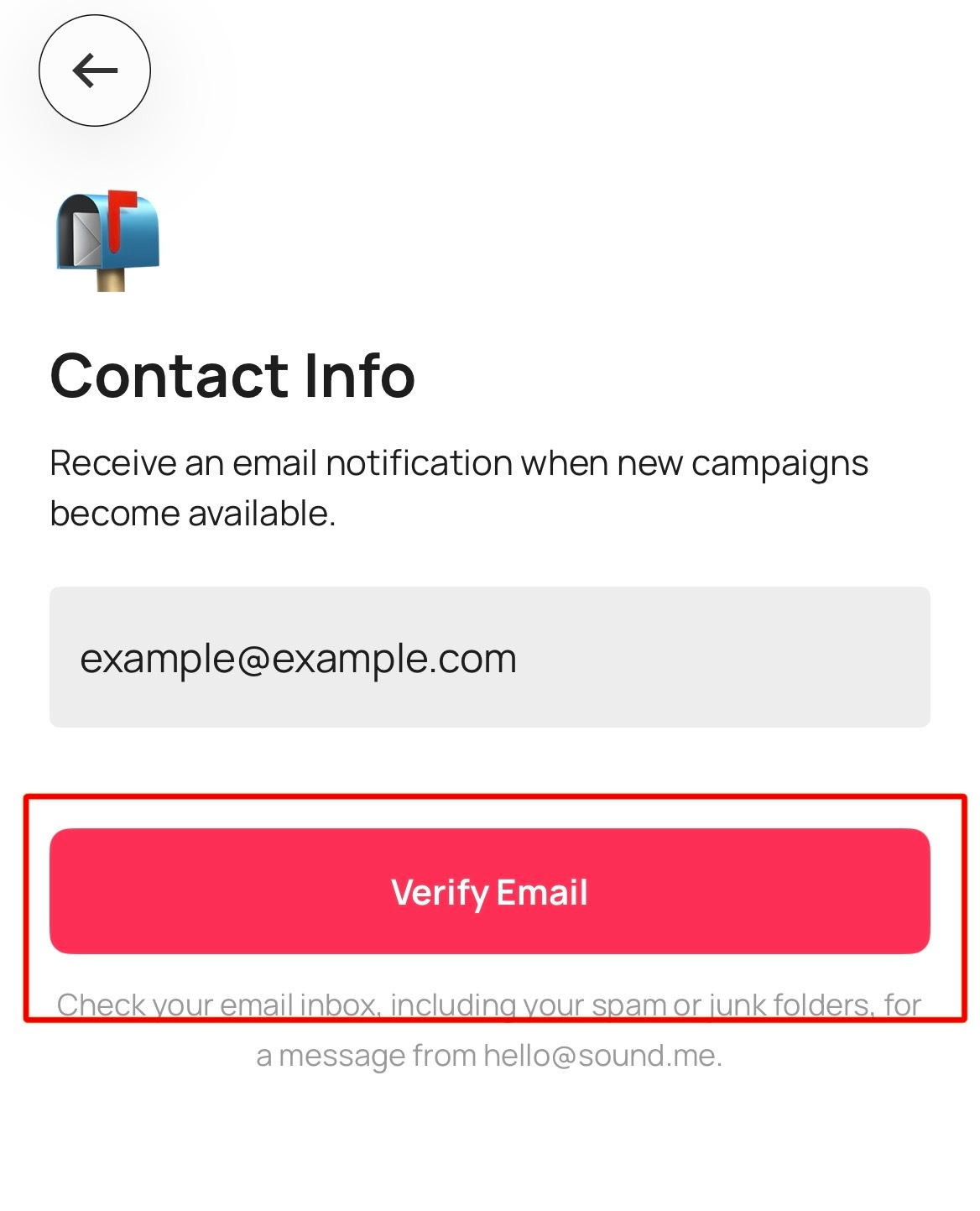
Once you have entered your new email address, please click the “Verify” button to continue the process.
Once you have entered your new email address, please click the “Verify” button to continue the process.
Step 6:
After completing all of the steps above, please check your email inbox for the verification email. Once you receive the email, you should see a button labeled “Click Here” or a similar verification button within the message.
After completing all of the steps above, please check your email inbox for the verification email. Once you receive the email, you should see a button labeled “Click Here” or a similar verification button within the message.
Please click that button to complete and verify your new email address.

If you continue to experience any issues after following the steps above, please don’t hesitate to reach out to our support team at hello@sound.me. We’ll be happy to assist you further and help ensure your email is updated and verified successfully.
Was this article helpful?
That’s Great!
Thank you for your feedback
Sorry! We couldn't be helpful
Thank you for your feedback
Feedback sent
We appreciate your effort and will try to fix the article